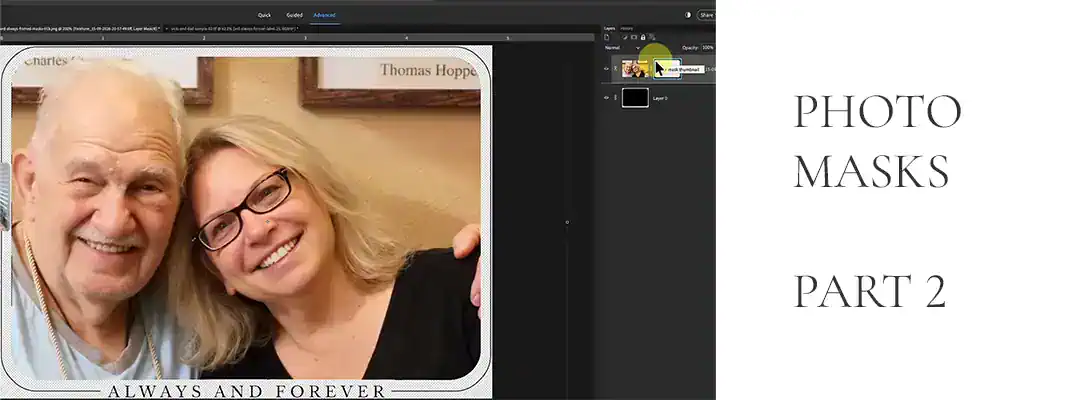
Why do photo masks with word art lose their details?
A regular clipping mask fills every pixel on the mask layer with your photo — including the border and word art you wanted to keep. The fix is to select just the main photo area with the Magic Wand and use a layer mask instead.
I love photo masks with word art and decorative borders. They give a page so much personality — until you clip your photo and watch the words vanish into the picture. Sound familiar? This is the tutorial I promised as “another day” in my photo masks and clipping masks guide.
Below I’ve outlined the general steps. For the full walkthrough, watch the video — I show every click.
Quick recap: the basics
If you’re brand new to photo masks, start with Part 1 — it covers everything from the ground up. Here’s the short version:
- Your photo goes directly above the mask in the Layers panel.
- Your photo must be larger than the mask so there are no gaps.
- Layer > Create Clipping Mask puts your photo into the shape.
That works beautifully for simple shapes. Masks with borders and word art need one extra trick.
How to use photo masks with word art and borders
Instead of clipping your photo to the whole mask, you’ll select only the main photo area and turn that selection into a layer mask on your photo. I’m working in Photoshop Elements 2024, but these steps are the same in any version of Elements and in full Photoshop.
Step 1: Set up the Magic Wand
The Magic Wand is nested with the other selection tools in your toolbar. Look for the icon that looks like a little wand with a starburst on the end. In Tool Options, set:
- Contiguous: checked — this selects only the pixels that touch each other, so you get the main shape without the border or words.
- Anti-aliasing: checked — this smooths the edges of your selection so they don’t look jagged.
- Tolerance: 32 — this is the default, and it tells Elements how much variation in shade (light gray to dark gray) to include.
Step 2: Select the main area of the mask
Hide your photo layer for a moment and select the mask layer. Click once inside the main area of the mask. You’ll see marching ants around the photo area only — not the outer frame or word art.
Step 3: Add a layer mask to the photo
Turn the photo layer back on and select it. At the top of the Layers panel, click the Add Layer Mask icon (a white rectangle with a black circle). Your photo now shows only inside that main area, and your borders and word art stay crisp.
Saving your masked photo
You have a few options, depending on whether you’ll want to edit it again:
- Save as a PSD or TIFF if you might reuse or adjust it later. This keeps your layers intact.
- Save as a PNG if you just want to drop it onto your layout. PNG keeps the transparent background.
Pro tip: create a merged copy in one step
Press Shift + Alt + Ctrl + E (Mac: Shift + Option + Cmd + E). Elements creates a new layer that merges your photo and mask together, while keeping the originals untouched. Then just click and drag that merged layer onto your layout.
Wait — didn’t I say in Part 1 to hold off on merging? I did! The difference is that this shortcut makes a merged copy. Your original photo and mask layers stay untouched and editable, so you can always go back and nudge things.
One heads-up — this shortcut merges every visible layer, so hide anything you don’t want included first.
Now your words stay crisp
Once you’ve done this a time or two, it’s genuinely easy — and it opens up a whole world of decorative masks you might have been avoiding. Want to see every click? Watch the full video above, and subscribe to my YouTube channel so you don’t miss the next one.
If you try this tutorial, I’d love to see what you make! Share your page in my Oscraps gallery.
Photo Masks in My Shop
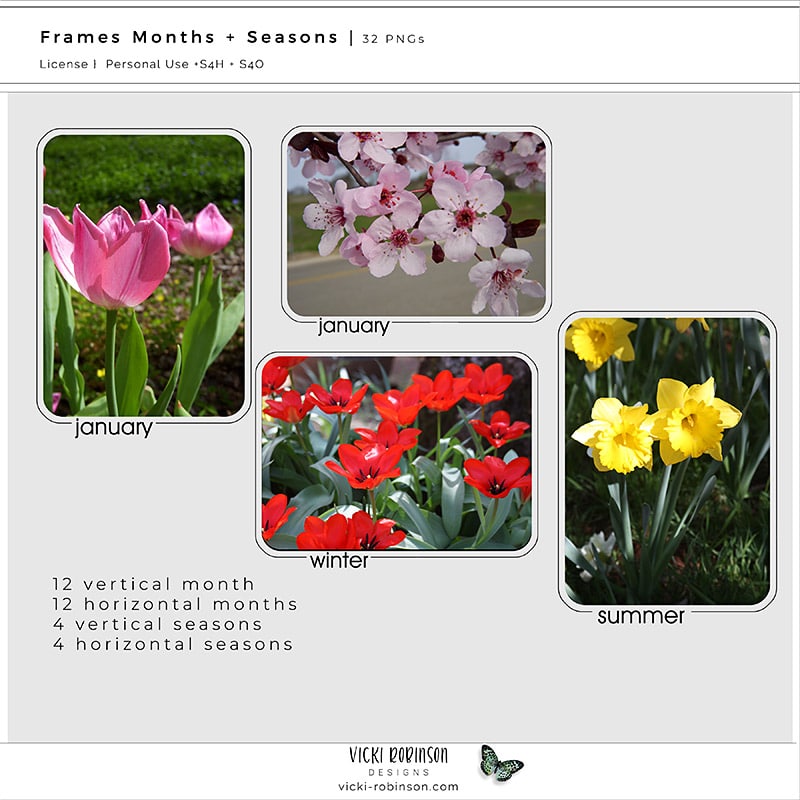
I’ve got a whole collection of photo masks in my Oscraps shop, from simple shapes to torn and painted edges. Here are a few favorites:


Ready for Your Next Page?
Learning a new technique is the easy part — finding the spark to actually sit down and use it is another story. If you’ve been feeling stuck, Begin Anywhere is my free 7-day email series of creative prompts to help you get back to your pages, one small step at a time.
Yes! I Want to Begin Anywhere →
And if you’re ready to go a little deeper, visit Start Where You Are for practical guides to getting unstuck and making pages you love.
0 Comments