Notebook Papers Made Easy with Layered Templates
Let’s be honest for a second… recreating a realistic notebook from scratch is kind of a pain. Between getting the layers right, lining up spirals, faking depth, and making it all feel real, you can spend a whole lot of time building — and not nearly enough time playing. And I don’t know about you, but I’d much rather use my creative energy telling stories and making art.
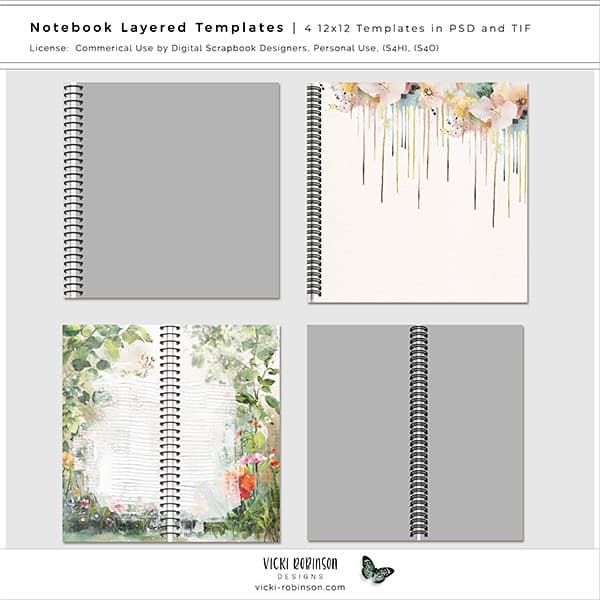
That’s exactly why I created my Notebook Layered Templates.
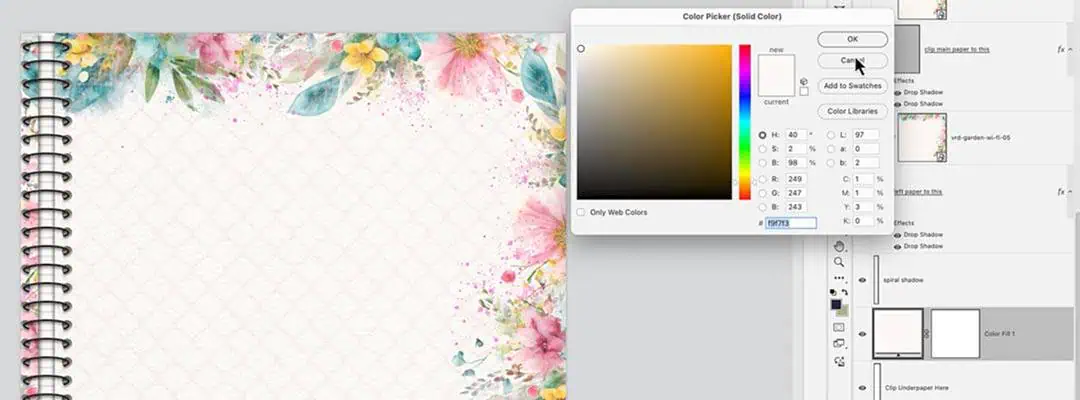
In this tutorial, I show you how these templates take all the complicated, fiddly stuff out of the process so you can jump straight to the fun part. You’ll see how the layered files are set up for both Photoshop Elements and full Photoshop, how to customize the center paper, spine, and under-paper layers, and how easy it is to clip in your own background papers for endless variations. You’ll also learn how to change spiral ring colors, adjust shadows for realism,
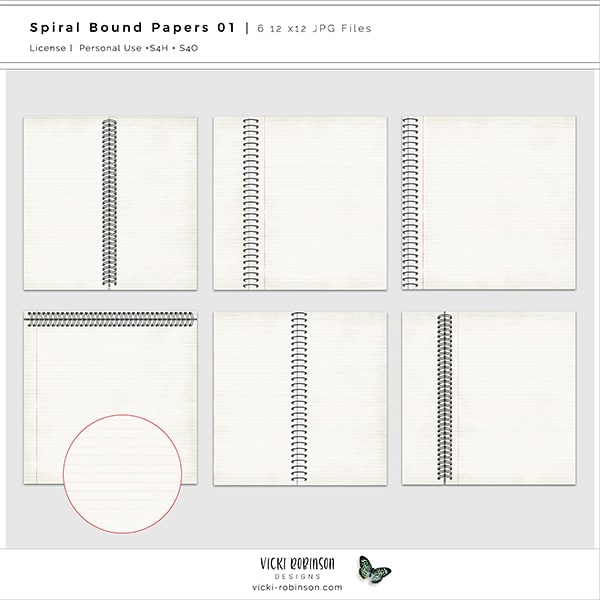
And if today is a “just let me play” kind of day? No worries at all. I’ve also linked done-for-you notebook papers created from these same templates — ready to use right out of the box.
Why Notebook Papers Feel So Complicated (and Don’t Need to Be)
Notebook papers look simple on the surface — a page, a spiral, maybe a crease or two — but recreating them digitally is another story entirely. Once you start trying to build one from scratch, you quickly run into all the little details that make it feel realistic: proper layering, believable shadows, alignment, depth, and that subtle “paper-on-paper” look that makes everything feel grounded.
And here’s the thing… all of that can be done. But it takes time. Time you could be spending scrapping, journaling, experimenting, or just enjoying the creative process.
That’s where templates come in — not as shortcuts, but as time-savers.
What the Notebook Layered Templates Do for You
The Notebook Layered Templates were created to remove the technical roadblocks that tend to slow people down. Instead of rebuilding the structure of a notebook every time you want a new paper, the templates give you a solid, thoughtfully layered foundation that’s already done.
The layers are organized, labeled, and designed to work intuitively — whether you’re using Photoshop Elements or full Photoshop. You can customize the center paper, adjust the spine, change the under-paper color, and clip in your favorite background papers with just a few clicks.
In other words, the complicated part is handled, so you can focus on the fun part.
What You’ll Learn in the Video Tutorial
In the video linked below, I walk through the entire process step by step, starting with an overview of how the templates are set up and why certain file formats are included. I explain the differences between PSD and TIFF files, how the sample papers fit in, and how to open and work with the templates in Photoshop Elements.
From there, you’ll see how to:
- Customize the center notebook paper
- Clip in patterned or textured background papers
- Adjust the inner spine for a more realistic look
- Change spiral ring colors
- Work with shadows to add depth
- Save your finished papers as JPEGs or layered files
I also demonstrate how the process translates into full Photoshop, including working with the left-side spiral templates and making small adjustments that add realism without overthinking it.
Not in a DIY Mood? I’ve Got You Covered
Some days, learning the process is exactly what you want. Other days, you just want to open a file and start creating.
If today is one of those “let me skip the steps” days, I’ve also linked my done-for-you notebook papers, which are created using these same templates. They’re ready to use right out of the box — perfect for digital scrapbooking, art journaling, planners, or hybrid projects.
No pressure. No rules. Just options.
Create More, Build Less
Whether you decide to follow along with the tutorial or use the ready-made papers, the goal is the same: less time building, more time creating. Notebook papers should support your storytelling, not slow it down.
When you’re ready, scroll down to watch the video, explore the templates, or grab the finished papers — and then get back to playing. 💛
Other Articles You May Enjoy
- Creating a Torn Paper Effect on Your Digital Scrapbook Page
- Using Layered Quick Pages in Digital Scrapbooking
This tutorial was very helpful to me when choosing papers for the notebook templates. I have a question though, I have moved on to using the artful expression papers, but I don’t understand how to put any papers on them that doesn’t hang over the sides or hide the middle page separation. Do these also have a template?
Hi Teri!
I’m so glad you found the template helpful! I’m sending you an email to follow up on this. vicki